
Welcome to your customer portal
Your customer portal puts your account in one place: invoices, calls and usage, your lines and services, mobiles, and support. You can use it on a computer, tablet or phone.
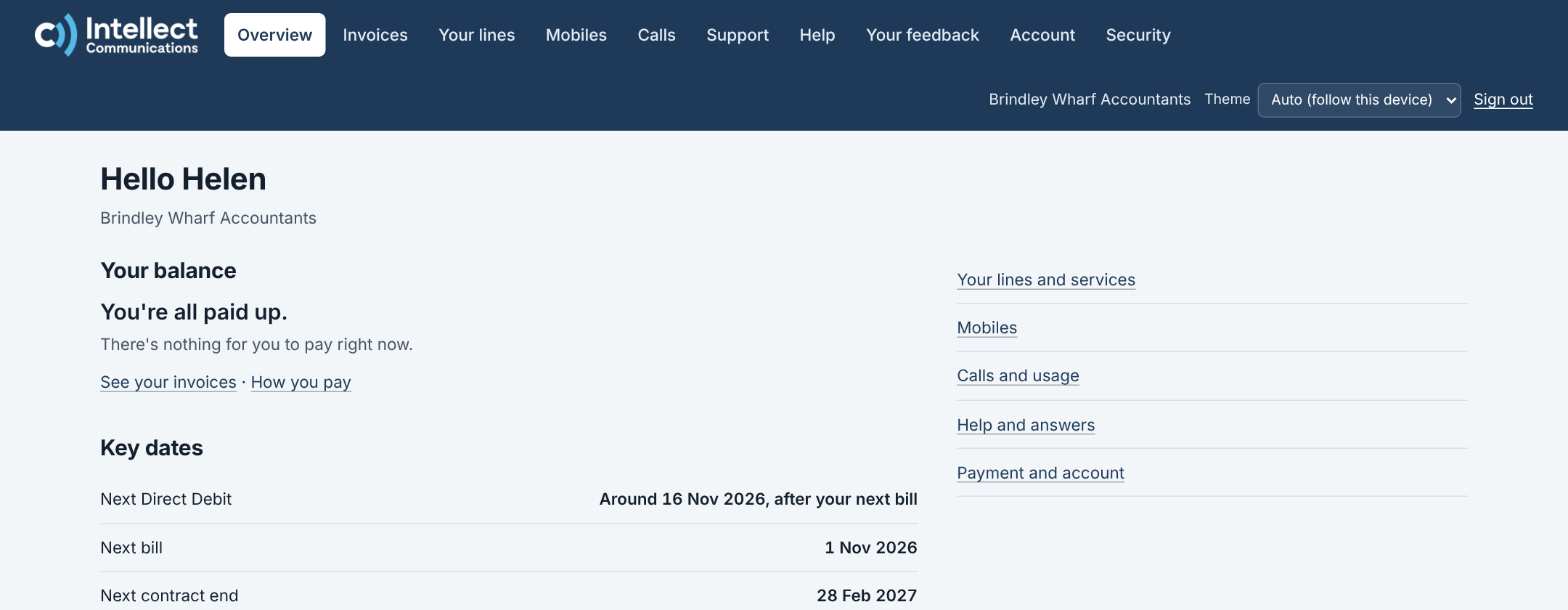
What's in the menu
- Overview: your balance, any price changes coming, your key dates, your support tickets and anything waiting for you.
- Invoices: every invoice, with the PDF, the full breakdown and an Excel download, plus statements. Invoices from our previous billing system are listed too. (Account admins only.)
- Your lines: each line and service on your account, with its monthly price and contract end date, and any equipment we've supplied.
- Mobiles: see and change your mobiles, such as bars, spending limits and SIMs.
- Calls: your calls and usage between any dates.
- Support: report a fault or ask a question, and follow it to the end.
- Help: answers to common questions, like this one.
- Your feedback: ideas and problems you've sent us with the Feedback button, where each has got to, and any question we have for you.
- Account: how you pay and the details we have for you. (Account admins only.)
- Security: add an authenticator app to protect your sign-in.
The Overview
- Your balance: what there is to pay, how much of it is overdue, and what's due next. If an amount will be collected by Direct Debit, it says so and gives the date: there's nothing you need to do.
- Price changes: if a price on your account is going to change, this box says which service, the old and new price, and the date it changes.
- Key dates (account admins): your next Direct Debit, your next bill and your next contract end.
- Support: how many tickets you have open, and any waiting for your reply.
Two kinds of user
- Account admins see the whole account.
- Line users see only their own lines and calls.
If someone else in your business needs access, ask us through Support and tell us which kind they need.
Light or dark
The portal follows your device. Use Theme at the top to choose Light or Dark instead.
Still need help?
- Call us on 01270 814 814
- Email support@intellect-comms.com
- Customers can sign in to the customer portal to report a fault, see invoices and manage their services.