
Signing in to the portal
There's no password to remember. You sign in with a link we email you, and an authenticator app adds a 6-digit code if you use one.
The first time
- Open the email from us (the welcome email, or the email about your completed order) and go to the portal.
- Type your email address and choose Send me a sign-in link.
- Open the new email from us and choose the link. It works once and lasts 20 minutes, so use it soon. You're now signed in.
- If your business asks everyone to use an authenticator app, you'll be asked to set one up straight away: scan the QR code with Microsoft Authenticator, Google Authenticator or a similar app, type the 6-digit code it shows, and save your 10 backup codes. If it's optional, you can do this any time under Security (see Protecting your sign-in with an authenticator app).
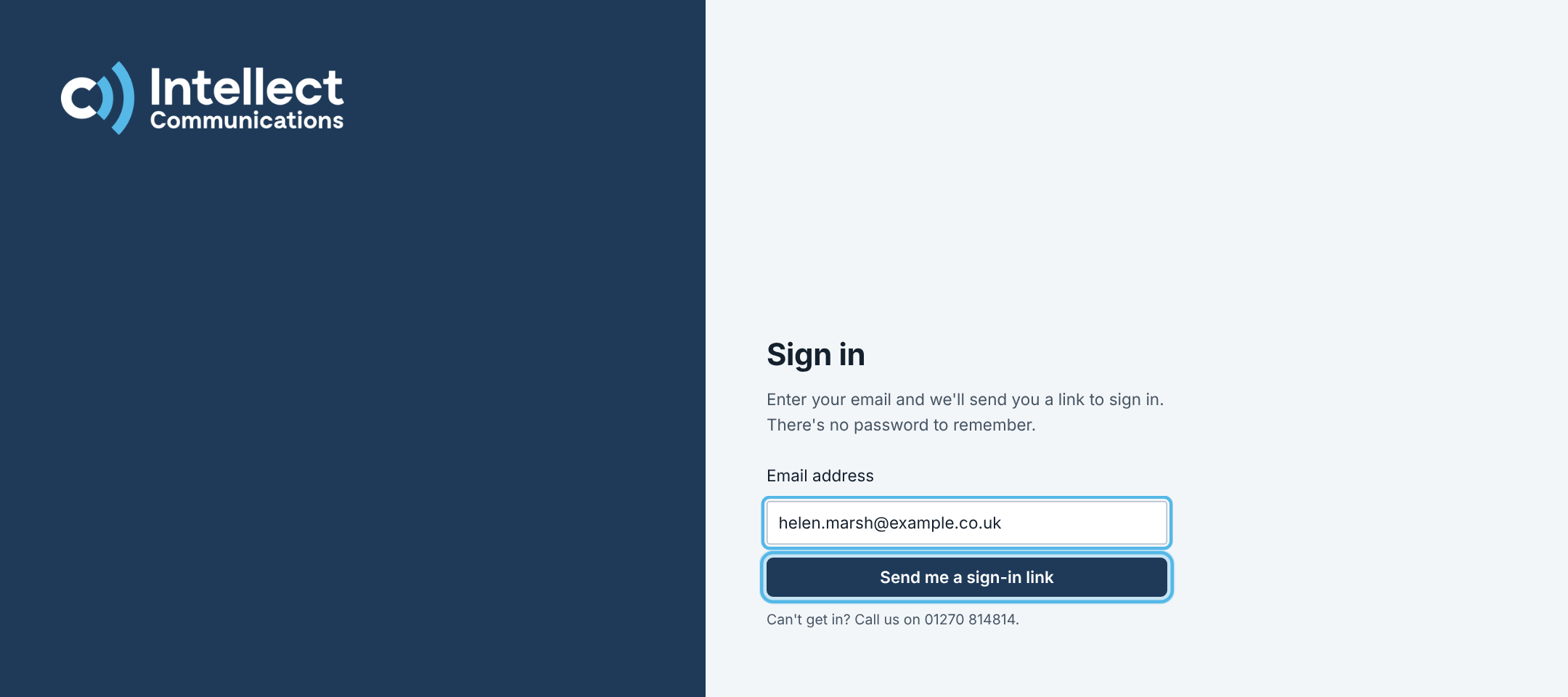
Every time after that
- Open the portal and type your email address.
- Choose Send me a sign-in link, then choose the link in the email we send you.
- If you've set up an authenticator app, type the 6-digit code it shows now. That's it.
A new link is needed each time: an old one won't work again.
A link to switch your portal on
When your order is complete, our email may include a personal link to switch your portal on. Choosing it signs you in straight away as an account admin, without asking for your email first. It works once and lasts 30 days. After that, sign in with your email address as above.
No email arrived?
Check your junk or spam folder, and that you typed the address we have for you. If it still doesn't come, contact us and we'll check your access.
Still need help?
- Call us on 01270 814 814
- Email support@intellect-comms.com
- Customers can sign in to the customer portal to report a fault, see invoices and manage their services.